Running a CygNet Report
Once parameters have been defined, run the report by clicking Save/Run; or by clicking on the Report menu and select Run Report; or by clicking Run Report on the toolbar.
To stop the report from loading, click Stop * on the toolbar. It will have a red "X" while the report is still being generated. Once the data retrieval is completed, the command will no longer be available.
Report Viewing Options
Once the report is displayed, you have viewing options. You can zoom in or out, navigate between pages, or search the report.
|
Report Viewing Options |
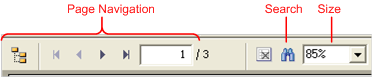
When the page indicator shows a number with a plus sign, it means there are more pages in the report:
|
Page Indicator |

The Page Indicator shows page 1 as the currently displayed page and that there are more pages available. Use the navigation arrow keys or type in a page number and press Enter.
Pressing F11 or selecting View > Full Screen will maximize the report view to fill the screen. Pressing F11 again will restore the view to its previous window size.
Using the Report View Shortcut Menu
If you right-click in the report view, a context menu appears. Options on this context menu are similar to those found in the Navigation bar: You can go to a previous page, the first or last page, and you can perform a search. Toolbar toggles hiding or unhiding the Toolbar in the report view. If you want to keep row and column labels visible as you scroll through a long report, export the report to Microsoft Excel or a CSV file and use Excel’s Freeze Pane command.
Selecting a Report Row to Copy
You can select a row item in a report by clicking on it. Hold down the Ctrl key to select other items in the same row. (You cannot select columns.) You can then right-click and select Copy and place the copied text or values into a document or an email message. When only one item is selected, you can also see the item’s corresponding table record field, such as "Field: els_header_record.category".


